How to Set-Up Path Aliases in Vite with React + TypeScript (with VSCode Support)

Sick of ../../../../../../../components/Button?
This is a guide on how to setup automatic path aliases in Vite using React and TypeScript - whether you’re starting a new project or adding it to an existing one.
Full working example on GitHub: https://github.com/AurelianSpodarec/example-vite-aliases-react-typescript
Vite Aliases Documentation: https://vite.dev/config/shared-options.html#resolve-alias
Goal
Automatic shortening from this mess:
import Button from "./../../../../../../components/Button"To this(which you can customise):
import Button from "@/components/Button"I’ll show you how to set up automatic aliases just like Next.js does, so you never have to manually adjust them again. Plus, you’ll learn how to add custom aliases exactly the way you want as well.
Prerequisites
Install the necessary packages(1).
Path types
path is built into Node, so there is nothing to install for it. You only need
the type definitions, so TypeScript understands it inside vite.config.ts:
npm install --save-dev @types/nodeNote: there is a path package on npm, but it is an old browser shim that has
not been updated in years. You do not want it — installing it can shadow the
built-in module. Just the types.
Setting Up Automatic Path Aliases
In your root directory, modify your vite.config.ts file to include aliasing support.
Step 1
First, import path
Step 2
Secondly, add the resolve alias object.
Outcome
import { defineConfig } from 'vite';
import react from '@vitejs/plugin-react';

+ import path from "path";

export default defineConfig({
  plugins: [react()],
+  resolve: {
+    alias: {
+      '@': path.resolve('src'),
+    },
+  },
});
Configuring TypeScript for Aliases
Modify your tsconfig.app.json (or tsconfig.json) to include the alias paths:
{
  "compilerOptions": {
    "baseUrl": ".",
    "paths": {
      "@/*": ["src/*"]
    }
  }
}
That’s it. Automatic Aliases you never have to tocuh ever again in your project, just like enxtjs does.
The @/* can be customised to anything you want, a #/* maybe []* if you fancy. Whatever the prefix.
You can add custom aliases to it as well.
Custom Aliases
Just like we’ve added “@”, the same way you can add custom aliases yourself for specific folders or files you want.
import { defineConfig } from 'vite';
import react from '@vitejs/plugin-react';

import path from "path";

export default defineConfig({
  plugins: [react()],
  resolve: {
    alias: {
+      atoms: path.resolve('./src/components/atoms'),
+      '#components': path.resolve('./src/components'),
      '@': path.resolve('src'),
    },
  },
});
{
"compilerOptions": {
"baseUrl": ".",
"paths": {
+ "atoms/*": ["src/components/atoms/*"],
+ "#components/*": ["src/components/*"],
"@/*": ["src/*"]
}
}
}Now to import a file from them, we can do so
import Button from "atoms/Button"Or
import Section from "#components/Section"The alias stands in for the folder, so you still name the file after it - atoms
on its own would point at the directory, not a component.
Any file that is not specified will use the default alias as well that uses “@”.
That’s it.
If you need to add more aliases, just add them in the alias and path Just don’t go wild, you tiger 🐯
Important Note!
-
Order in the TypeScript config does not decide anything. When more than one pattern matches, TypeScript takes the one with the longest prefix before the
*, soatoms/*wins over@/*for a file under the atoms folder no matter which you listed first. -
This will also tell VSCode to recommend the import closest to the component folder. If you change this file, I recommend restarting VSCode for the effects to take place.
-
Do not prefix paths with ./ inside paths(unlike in vite config), as baseUrl already defines the root directory.
That’s it! Everything should be working now :)
If you’re having issues with VSCode wrong autocompleting…
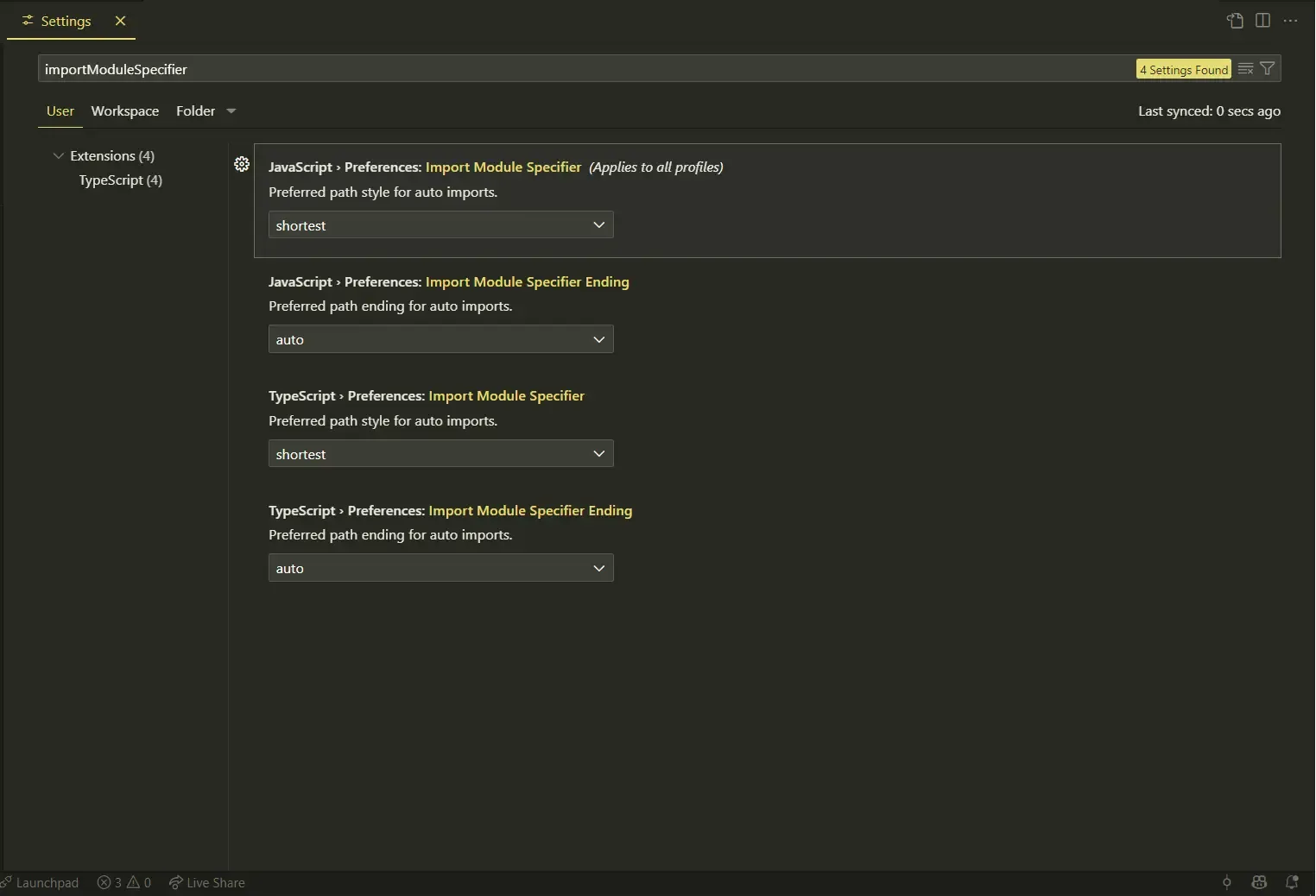
If the above works, but when you autoimport components via VSCode the path goes back to dots, you might need to change import module specifier.
You most likely need to do it if you’re using just “@”.
I recommend creating a folder called .vscode and a file settings.json as so your team can use that as well.
Then paste this, which effectivelly tells VSCode that you don’t want no relative paths, and it iwll force to always use the aliasing.
This does it so VSCode naturally selects “@/folder” over “./folder” when autocompleting when typing a component on a page - non-relative helps
{
  "typescript.preferences.importModuleSpecifier": "non-relative",
  "javascript.preferences.importModuleSpecifier": "non-relative"
}
Open Settings
For your custom settings.
You can open the VSCode settings with Ctr + ,.
Search for import module specifier.
Note that there are two different options, one for JavaScript and one for TypeScript - set both.
Use non-relative, the same as the workspace file above. shortest is the other
option, but it picks whichever specifier is fewest characters, so for a file one
folder away it will still hand you ./Button and you are back where you started.
These are my settings:
Good idea to set these settings on a per-project, per-workspace basis - your team(or future team) will thank you.
Third-Party Packages
Disclamer: I’ve not used them, but they exists 🦶
If you’re still having issues at 2am, you’re on your own.
Good Luck!
Anonymous Dev: “your life will be better if you forget about import path aliases. embrace the ../../../../..” 🤷♂️
P.S. Fun fact: I just noticed that the first version of this article was published on 5th April, 2023, via LinkedIn. Now I’ve rewritten it for my blog, and it just so happens that I finished and published it on 5th April, 2025. What are the odds?! (1 in 133,225years - apparently)